
Choose a clear route to begin
Start with two or three cities or places that make sense as one story. For example, Beijing, Shanghai and Shenzhen provide a simple three-stop exercise.
WayEcho 1.5.2 opens on the flight map. It uses a route planner and local route history. Online place search may need a connection, and some map or model resources may need preparation. The animation illustrates the order of your chosen places rather than an airline’s actual flight path.
1. Add confirmed search results
From the map, tap “Create route”. The editor can open with the currently selected route already filled in. Decide whether to revise that route or start a separate one.
- To begin a separate route, tap “Create New”. This clears the editor and makes the next save a new route rather than an update to the selected one.
- Type a city or place in “Search city or place”, then tap the magnifying-glass “Search” button. Typing or dismissing the keyboard alone does not run the search.
- Choose the intended result from the list. Check its displayed country and city so that similarly named places do not get confused.
- Repeat the explicit search and selection for each further stop. The editor supports up to 30 stops; use a short list while learning.
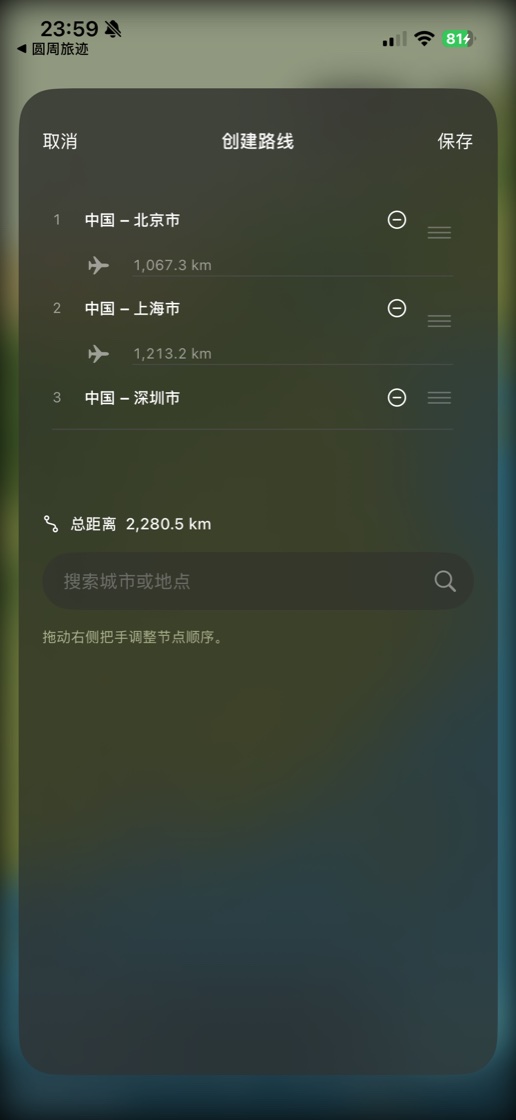
2. Check order and distances
The numbered list is the journey order. When there are more than two stops, drag the handles to reorder them. Remove an unwanted place with its minus button. If the two-stop sequence is wrong, remove and add the places in the intended order; the editor enables drag reordering only with more than two stops.
Distances between neighbors and “Total distance” are great-circle measurements. They help describe the route’s scale, but they are not road mileage, rail distance or a booked flight itinerary. Check the countries and sequence before saving.
A valid route needs at least two stops, with different places at each adjacent pair. If “Save” reports an error, check those conditions and try again.
3. Save and reopen from Routes
Tap “Save” in the editor to retain the route on the device and return to the map. Editing a selected route updates that route; using “Create New” first creates a separate history entry. This is local persistence, not cloud synchronization.
- Tap “Routes” on the map to open the saved-route list.
- Use the displayed route title, stop count and distance to identify the journey you want.
- Tap the saved route to make it current, then tap “Play” on the map to enter its playback.
- Use “Delete Route” only when you intend to remove that saved entry. To change the current journey, reopen “Create route”, revise its stops and save.
4. Review the animation before exporting
Use the map style control to explore “Simple”, “Detailed” or “Road Map”. Available terrain and city detail depends on the region and resources; do not assume every place has the same level of 3D detail.
During playback, adjust “Speed” and “Size” to make the animation readable. The 747 is the free model. “Model” also contains route-line style and color controls; additional Pro model selection depends on an active verified entitlement and downloaded resources.
Return to the map and select another saved entry from “Routes” when you want a different journey, then press “Play” again. When the route is ready for a video, use the separate video export guide for “Summary” and “Segments”.
Questions before you start
Is this an actual aircraft tracker?
No. The animation is a visual route story based on selected places, not live aircraft positions or a certified flight plan.
Is this workflow available now?
Yes. WayEcho 1.5.2 is available on the App Store. Update to version 1.5.2 to follow the route-planning and playback steps in this guide.
Your next journey
Explore WayEcho on iPhone.
WayEcho 1.5.2 is available on the App Store. Download the app to plan a route and turn it into a flight video.
Download on the App Store